
Studio Tips · 002
7 hidden features of Studio that are convenient to know
The buttons aren't that big so it's easy to miss them, but they have features that make repeated shooting and organizing results much easier. It was collected based on the actual app behavior.
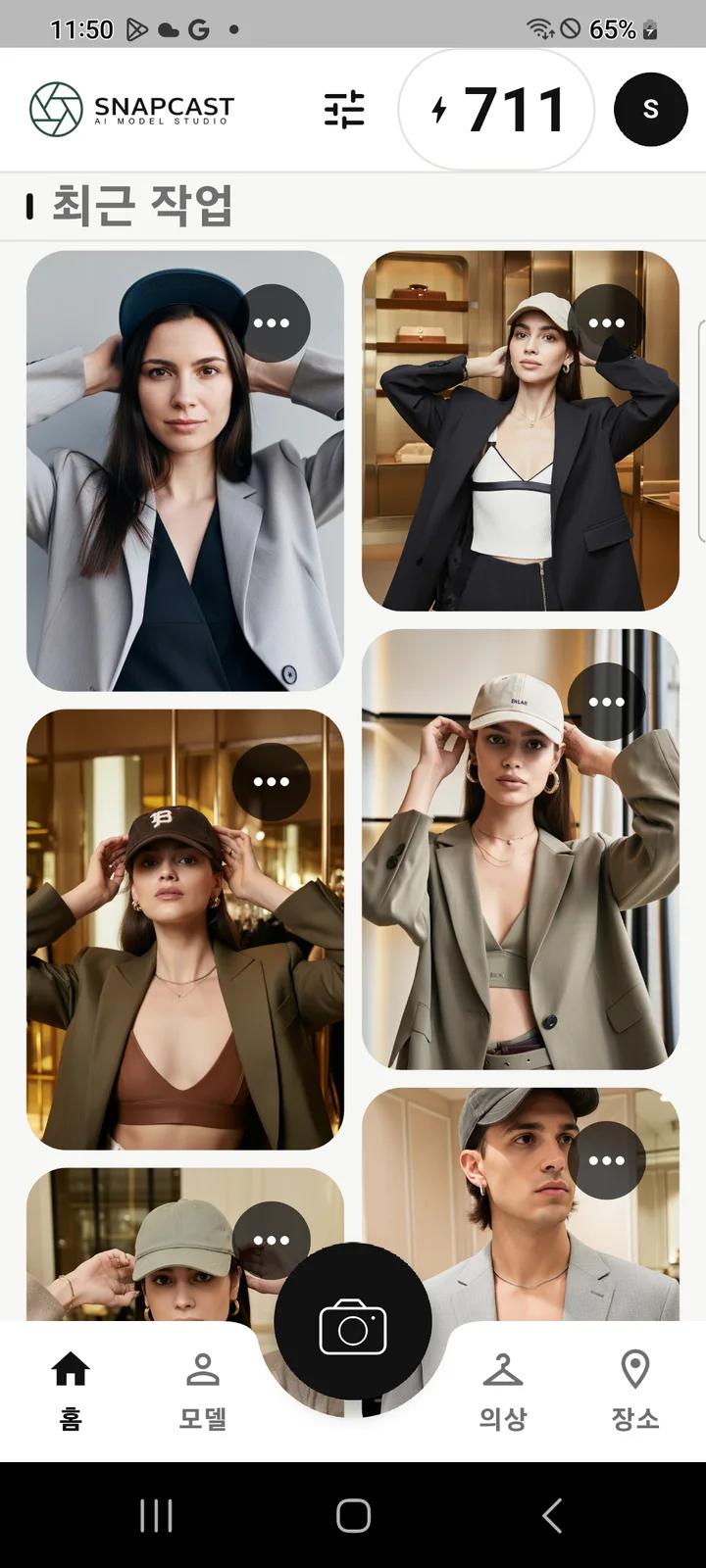
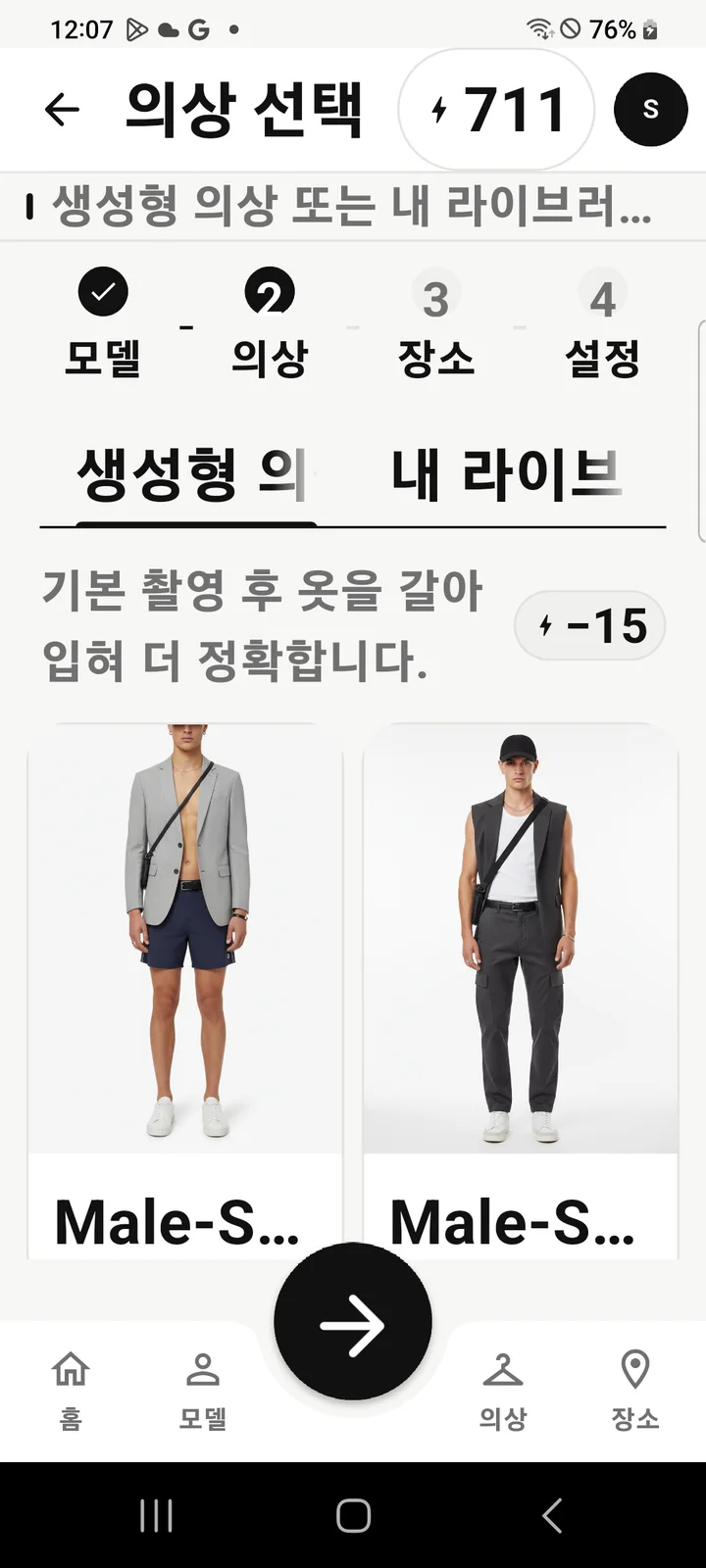
Rather than an app that creates models, costumes, and locations and then assembles them from scratch each time, Studio is closer to a workshop where well-made materials and settings are repeatedly used. Knowing the features below will make creating variant cuts of the same campaign a lot less work.
View only the shooting results and clothes changing results separately
You can view overall, shooting results, and outfit changes in the filters at the top of the home page. When the results are accumulated, it is good to compare the original shot and the derived fitting cut.
Recall last shooting settings
Your choices like framing, proportions, pose, gaze, facial expressions and filters are saved. It remembers the model's gender, so you don't have to reselect detailed settings every time you take a series of shots with the same model.
Start shooting right from the model/clothes/location screen
On the detailed screen for each item, there is ‘Shoot with this item’ or ‘Shoot at this location.’ If you start here, your selection will remain fixed and you'll move on to the next step, so you don't have to look for the Home button again.
You can exit to another screen during creation.
Once your shoot or fitting is queued, you don't have to keep looking at that screen. Once you've finished working on an image, it will appear in Recent Tasks on Home. However, this may be limited if you start multiple creation tasks simultaneously.
Even if you change clothes, the original results remain.
Selecting a different outfit from the results screen will not overwrite the existing image. Because new fitting results are created separately, you can compare the original and multiple outfit versions side-by-side.
Existing results are maintained even if you clean up models or clothes.
Even if you delete library items that are no longer in use, the already completed results remain. You can store the selected shooting results while lightly organizing the library.
Personal and Studio credits and subscriptions are shared
Both apps combine credits and subscription benefits from the same Snapcast account. If you have subscriptions activated in one app, you can check their status in Studio as well, so you don't have to start over again.
Choose a model, save the shooting settings, and build up the results by changing just one of Location → Clothing → Model. It becomes easier to compare why the atmosphere has changed.
The most useful combination is ‘start shooting right from the details screen + use memorized settings + compare results with home filters’. It's great for organizing variant cuts of the same campaign in a short period of time.